Using a local Codex App Server from ChatGPT and the terminal
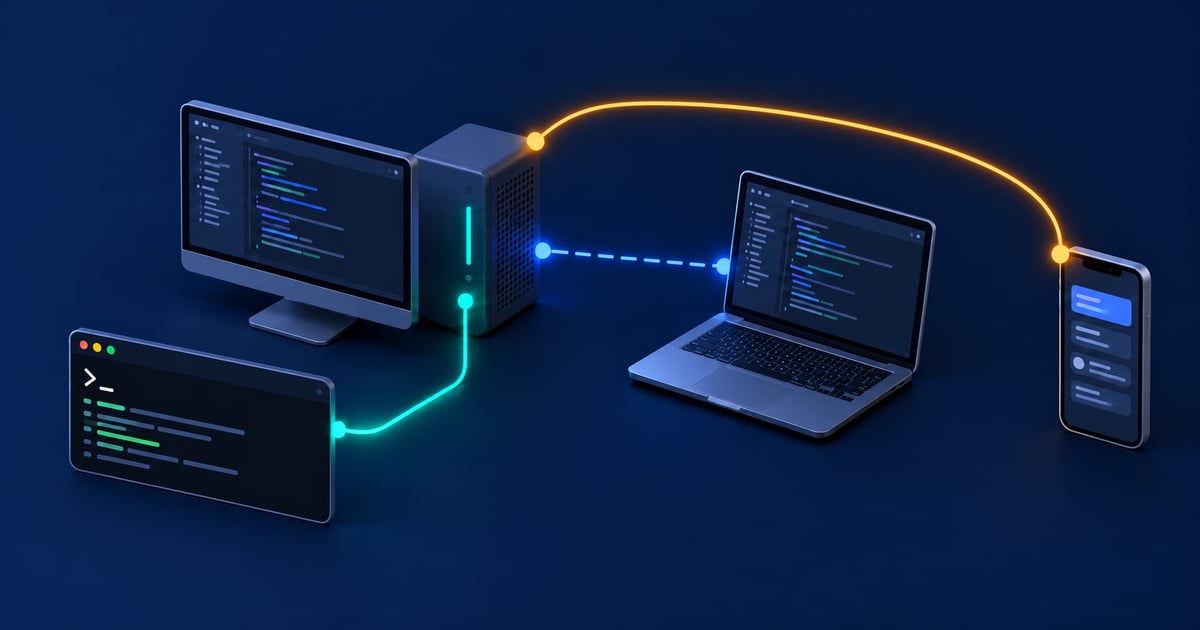
Your repositories, dependencies and development tools are already installed on your machine. With the Codex App Server, you can work against that environment from a terminal, or connect to it through the ChatGPT desktop app.
This is useful for a Mac mini at home, a Linux development box, or a workstation you want to access from another computer. You can leave the project where it is and choose a different interface to work on it.
Let’s look at starting the server, connecting locally, and accessing the machine remotely.
The
remote-controlcommands are experimental. The commands and app workflows below reflect the official documentation as of October 25, 2026. App features can depend on your version and workspace settings.
Preconditions#
We need a macOS or Linux machine with Codex installed, a project directory, and the tools required to work on that project.
The Codex CLI documentation provides a standalone installer for both operating systems:
curl -fsSL https://chatgpt.com/codex/install.sh | shThen sign in:
codex loginFor a headless machine, you can use device authentication:
codex login --device-authOpen the printed link on a device with a browser and complete the login. Device code login must be enabled for your account or workspace. You can check the authentication state with:
codex login statusFor this walkthrough, use ChatGPT authentication. API key authentication supports local usage, but some features involving ChatGPT workspaces and cloud services have additional restrictions. The authentication documentation covers the available options.
Here, “local” refers to the development environment and command execution. It doesn’t mean the model itself runs on your machine.
Starting the app server#
On the machine that should execute the work, run:
codex remote-control startThis starts the managed app-server daemon with remote control enabled. If your installation doesn’t recognize the command, check codex remote-control --help and update your CLI before continuing.
See the remote-control command reference for details.
Connecting locally from the terminal#
Once the daemon is running, open another terminal on the same machine, under the same user:
codex --remote unix://The unix:// endpoint selects Codex’s default local app-server socket. The client and server can run on the same computer.
You can also select the project directory explicitly:
codex --remote unix:// --cd /absolute/path/to/your/projectUse a project path on the server. As a quick check, ask Codex to print the working directory and inspect the repository’s Git status.
To browse chats on the shared server, use the agent command center:
codex agents --remote unix://The CLI reference documents the command center and directory option. The App Server documentation describes the supported socket and WebSocket transports.
Connecting from the ChatGPT desktop app#
The documented desktop app workflow uses SSH. Here, codex-box holds the repository and the ChatGPT desktop app runs on another computer.
Add an entry to ~/.ssh/config on the computer running the app:
Host codex-box
    HostName 192.168.1.50
    User your-user
    IdentityFile ~/.ssh/id_ed25519
Replace the example values and enable SSH access on the target machine. Test the connection:
ssh codex-boxCheck Codex inside that SSH session:
command -v codex
codex login status
Then open Settings → Connections → SSH in the ChatGPT desktop app, add or enable the host, and select a project folder on it.
The app manages the server over SSH. Its remote login shell must be able to find codex on PATH.
See the SSH connection guide.
What about pairing codes?#
The CLI can generate a temporary manual pairing code after the daemon has started:
codex remote-control pairTo include structured metadata:
codex remote-control pair --jsonThe JSON includes pairing codes, an environment ID and an expiration time.
The command documentation describes pairing for managed clients, but doesn’t specify a universal app screen for a CLI-only host. The SSH workflow above has a documented app setup.
You don’t need a pairing code for the local unix:// connection.
Using the ChatGPT app on your phone#
For a Mac, the documented mobile setup starts in the ChatGPT desktop app on that Mac:
- Open Settings → Connections → Control this Mac.
- Select Set up or Add and complete the verification.
- Scan the displayed QR code with your phone.
- Sign in with the same ChatGPT account and workspace, then approve the connection.
- On iOS, open Codex in the ChatGPT app. Older app versions may still call it Remote.
You can then select the computer and project, start a task, review changes and respond to approval requests. Keep the Mac awake, online and running the desktop app.
The mobile guide currently documents direct connections to Mac and Windows desktop hosts. It doesn’t establish a direct phone-to-headless-Linux setup using only remote-control start and a pairing code.
For Linux projects, connect the desktop app to the SSH host first, then connect your phone to that desktop host. Both machines need to stay available. See remote development environments.
Connecting from another terminal#
You can also access the existing daemon through SSH without opening the desktop app:
ssh codex-boxThen, inside the SSH session:
codex agents --remote unix://Here the terminal UI runs on codex-box, so unix:// resolves to its local socket. Running the same command before SSH would address the socket on your current computer.
If you need a TCP endpoint for a custom client, the App Server guide also covers explicit WebSocket listeners. For the setup here, SSH and the local socket are sufficient.
Stopping the daemon#
When you’re finished using the managed server:
codex remote-control stopA useful first experiment is to start the daemon, connect with codex --remote unix://, and inspect a small repository. Once that works, add the machine as an SSH connection in the desktop app. This makes it easier to check the local setup before adding remote access.