Hosting your own signed DuckDB extensions on S3-compatible storage
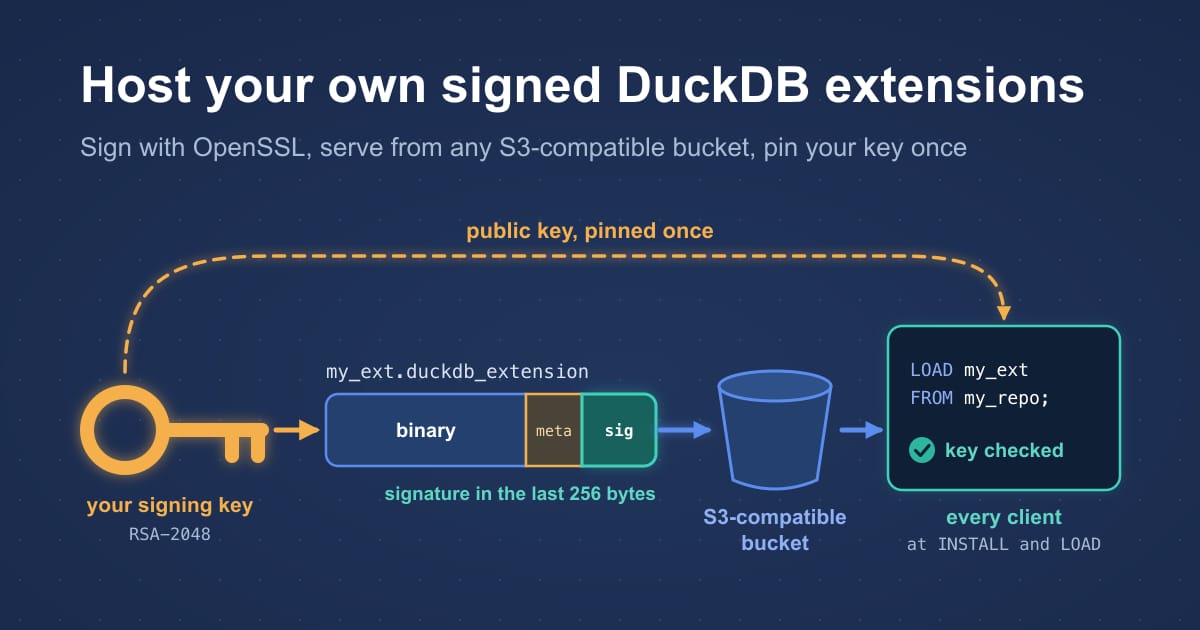
DuckDB 2.0 can trust your own signing key. Sign an extension with OpenSSL, put it in a bucket, and install it without -unsigned.
Until DuckDB 2.0, hosting your own extension came with a catch. DuckDB only trusted its own keys: one set for core extensions and one for community extensions. If your extension couldn’t go through the community repository, which requires public source code, every client had to start with -unsigned. That switches off signature checks for every extension, not just yours.
Version 2.0 adds a third option: custom extension repositories. A repository is a name, a URL prefix and one or more RSA public keys. You sign with your own key, put the files anywhere DuckDB can read, and each client pins your public key once:
SET allow_extension_repositories = 'allowed';
CREATE EXTENSION REPOSITORY my_repo
    WITH PREFIX 'https://extensions.example.com'
    USING PUBLIC KEY '-----BEGIN PUBLIC KEY----- ...';
INSTALL AND LOAD my_ext FROM my_repo;
I wanted this for my own extensions on Cloudflare R2, but the docs stopped right where it got interesting. They didn’t say how to sign an extension, or how these extensions behave once they’re installed. So I read the source, tested the behaviour with the v2.0.0 CLI and sent a docs PR, which is merged now. This post is the longer version, and a starting point for hosting your own:
- How signing works: the file format, the hash, the signature and which keys DuckDB checks.
- A walkthrough from a new key to
LOAD, on any S3-compatible store. You don’t need to build anything to follow along. - What’s different from built-in extensions, which should shape your setup.
- Key rotation, DuckDB upgrades and CI.
- The limits, and what I haven’t tested.
One thing up front: the docs mark custom repositories as work in progress, and the syntax may still change.
How extension signing works#
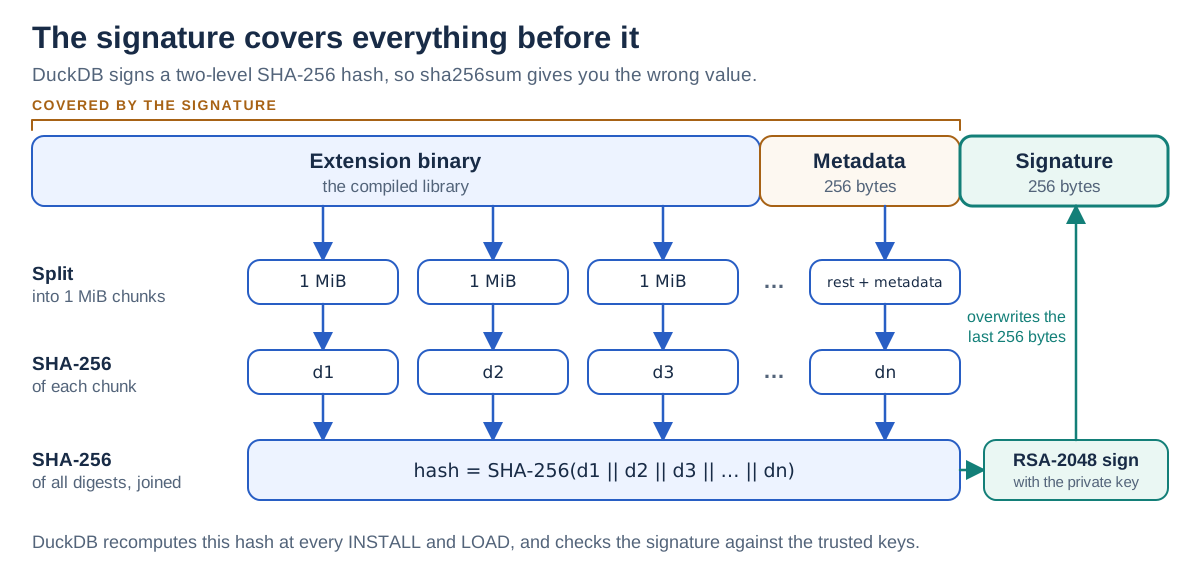
A signature is a 256-byte block at the very end of the extension file. It covers every byte before it, including a metadata footer, so the platform and DuckDB version can’t be changed without breaking it.
The footer#
Every build appends a 512-byte footer: eight 32-byte metadata fields, followed by the signature.
| Offset from end of file | Size | Content |
|---|---|---|
| -512 | 96 bytes | Three unused fields |
| -416 | 32 bytes | ABI type: CPP, C_STRUCT or C_STRUCT_UNSTABLE |
| -384 | 32 bytes | Extension version |
| -352 | 32 bytes | DuckDB version (the C API version for C_STRUCT) |
| -320 | 32 bytes | Platform |
| -288 | 32 bytes | Magic value 4 |
| -256 | 256 bytes | RSA signature |
You can read the metadata of any extension binary from the shell:
tail -c 512 rusty_quack.duckdb_extension | head -c 256 | tr -s '\0' '\n' | grep .C_STRUCT_UNSTABLE
e249224
v2.0.0
osx_arm64
4The build leaves the last 256 bytes zeroed, and signing only overwrites them. So you can re-sign an existing build at any time without rebuilding it.
The hash#
DuckDB doesn’t sign a plain hash of the file, so sha256sum gives you the wrong value. It splits everything except the last 256 bytes into 1 MiB chunks, hashes each chunk with SHA-256 on its own thread, and then hashes the concatenated digests:
split -b 1M my_ext.unsigned chunk_
for f in chunk_*; do openssl dgst -binary -sha256 "$f" >> digests; done
openssl dgst -binary -sha256 digests > my_ext.hash
That’s all DuckDB’s compute-extension-hash.sh does, and it’s what we’ll use below.
The signature#
The 32-byte result is signed with RSA, which is what openssl pkeyutl -sign -pkeyopt digest:sha256 does. DuckDB ships no separate signing tool; extension-upload-single.sh is the reference. Keys must be exactly 2048 bits, because the slot in the file is 256 bytes:
Invalid Input Error: Invalid public key: extensions are signed using 2048 bit RSA keys, ...DuckDB checks the signature twice:
- At
INSTALL, on the downloaded bytes, before anything is written to disk (source). - At every
LOAD, on the installed file, before the library is opened (source).
Setting allow_unsigned_extensions skips both. In my tests, a build signed with an unpinned key and a build with one flipped byte were both rejected at INSTALL.
Which keys count#
A valid signature isn’t enough. It has to come from the key set that matches where the extension came from, and DuckDB keeps three of them (source):
- Core: 20 keys embedded in the binary. Also the fallback for any origin DuckDB doesn’t recognize.
- Community: 19 keys, embedded separately, trusted only while
allow_community_extensionsis on. - User-provided: the keys you pinned, trusted only for extensions installed from that one repository.
The practical consequence is the part most likely to catch you out: your key only counts when the extension is installed and loaded by repository name. Every other route falls back to DuckDB’s own keys. I ran each of these with a self-signed extension:
| Statement | Keys checked | Result |
|---|---|---|
INSTALL x FROM my_repo, then LOAD x FROM my_repo | Pinned keys of my_repo | Works |
INSTALL AND LOAD x FROM my_repo | Pinned keys of my_repo | Works |
INSTALL x FROM 'https://extensions.example.com' | Core | Invalid signature |
SET custom_extension_repository = '...', then INSTALL x | Core | Invalid signature |
INSTALL 'https://.../x.duckdb_extension.gz' | Core | Invalid signature |
LOAD './x.duckdb_extension' | Core | Invalid signature, unless started with -unsigned |
LOAD x | Core or community | Not found |
Hosting your own repository#
We need DuckDB 2.0, OpenSSL, rclone, jq and a bucket on an S3-compatible store.
To keep this runnable without a build, we’ll publish rusty_quack, a small community extension, re-signed with our own key. For your own extension, start from the extension template. Its build puts the binary at build/release/extension/<name>/<name>.duckdb_extension. Don’t run strip on it, because that corrupts the footer.
1. Create a signing key#
openssl genrsa -out signing_key.pem 2048
openssl rsa -in signing_key.pem -pubout -out signing_key.pub
openssl pkey -pubin -in signing_key.pub -outform DER | openssl dgst -sha256
The last command prints the key’s fingerprint, the SHA-256 of its DER encoding. DuckDB reports the same value later, so publish it somewhere other than the bucket. The private key belongs in your CI’s secrets and never in the bucket.
While you’re at it, create a second key and keep it offline. Pinning both from day one makes rotation much easier.
2. Get an extension binary#
EXT=rusty_quack
VERSION=v2.0.0
PLATFORM=$(duckdb -noheader -list -c "PRAGMA platform;")
curl -fsS -O "http://community-extensions.duckdb.org/$VERSION/$PLATFORM/$EXT.duckdb_extension.gz"
gunzip "$EXT.duckdb_extension.gz"
3. Sign it#
curl -fsS -O https://raw.githubusercontent.com/duckdb/duckdb/v2.0.0/scripts/compute-extension-hash.sh

size=$(wc -c < "$EXT.duckdb_extension")
head -c $((size - 256)) "$EXT.duckdb_extension" > "$EXT.unsigned"
bash compute-extension-hash.sh "$EXT.unsigned" > "$EXT.hash"
openssl pkeyutl -sign -in "$EXT.hash" -inkey signing_key.pem -pkeyopt digest:sha256 -out "$EXT.sig"
openssl pkeyutl -verify -pubin -inkey signing_key.pub -sigfile "$EXT.sig" -in "$EXT.hash" -pkeyopt digest:sha256
Signature Verified Successfully4. Lay out the repository#
A repository is a static file tree, with no index and no server logic. DuckDB builds each URL from the prefix, its own version, the platform and the extension name (source):
<prefix>/.well-known/duckdb-extension-repo.json
<prefix>/<duckdb_version>/<platform>/<name>.duckdb_extension.gz
<prefix>/<name>/<ext_version>/<duckdb_version>/<platform>/<name>.duckdb_extension.gz
The third path is only requested by INSTALL x FROM my_repo VERSION '<ext_version>'. We’ll build the first two:
mkdir -p "repository/$VERSION/$PLATFORM" repository/.well-known
cat "$EXT.unsigned" "$EXT.sig" | gzip > "repository/$VERSION/$PLATFORM/$EXT.duckdb_extension.gz"
jq -n --rawfile key signing_key.pub '{signature_keys: [$key]}' > repository/.well-known/duckdb-extension-repo.json
The key file is optional. It’s only read when a client runs CREATE EXTENSION REPOSITORY without a key, and it may be at most 64 KiB. Each signature_keys entry can be PEM or the bare base64 body.
5. Upload it#
The tree goes into the bucket as is. Here’s the command for R2:
export AWS_ACCESS_KEY_ID=...
export AWS_SECRET_ACCESS_KEY=...
rclone copy repository :s3:my-bucket \
    --s3-provider Cloudflare \
    --s3-endpoint https://<account_id>.r2.cloudflarestorage.com \
    --s3-env-auth \
    --s3-no-check-bucket
For another store, change --s3-provider and --s3-endpoint. rclone knows most of them. I ran this with --s3-provider Minio against MinIO.
Leave Content-Encoding unset on the .gz objects. DuckDB detects gzip from the file itself, and neither its upload script nor its core repository set that header.
For later, DuckDB’s own script signs, gzips and uploads in one go, to both the latest and the versioned path:
export DUCKDB_EXTENSION_SIGNING_PK="$(cat signing_key.pem)"
export AWS_ENDPOINT_URL=https://<account_id>.r2.cloudflarestorage.com
export AWS_ACCESS_KEY_ID=...
export AWS_SECRET_ACCESS_KEY=...
export DUCKDB_DEPLOY_SCRIPT_MODE=for_real
./scripts/extension-upload-single.sh my_ext v1.0.0 v2.0.0 linux_amd64 my-bucket true true ./build
Run it from a DuckDB checkout. The arguments are the extension name, its version, the DuckDB version, the platform, the bucket, whether to upload the latest path, whether to upload the versioned path, and the directory that holds the binary.
On Linux against MinIO, its output was byte-identical to the recipe above. It picks rclone’s Cloudflare provider for R2 endpoints, and S3_PROVIDER sets it for other stores. Three things to know before you use it:
- Without
DUCKDB_DEPLOY_SCRIPT_MODE=for_real, it uploads nothing and still exits 0. - It doesn’t work with the stock bash on macOS. bash 3.2 fails with
extra_upload_args[@]: unbound variable, uploads nothing, and the script still exits 0. Run it on Linux, or use the recipe above. - Install rclone first. If it’s missing, the script runs rclone’s installer through
curl, withsudoif available.
6. Decide how clients reach the bucket#
The prefix scheme selects the code path, and the paths behave differently (source):
| Prefix | Bucket | httpfs | If .gz is missing | Redirects |
|---|---|---|---|---|
https://extensions.example.com | Public | Required, autoinstalled and autoloaded from core | Falls back to the uncompressed file | Not tested |
http://extensions.example.com | Public | Not needed; if already loaded, the URL is rewritten to https:// | HTTP 404 | HTTP 301 error |
s3://my-bucket | Private | Required | Falls back to the uncompressed file | Does not apply |
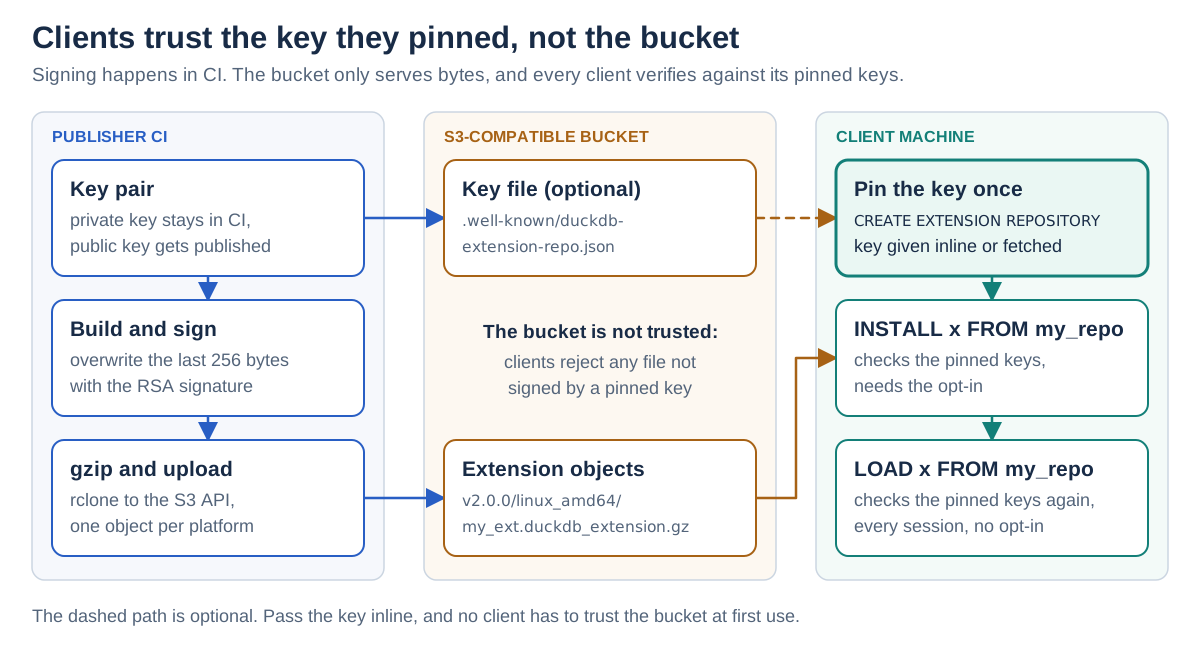
I’d start with a public bucket on a custom domain and an https:// prefix. Clients reject anything not signed by a key they pinned, so the bucket only has to serve bytes. If the binaries themselves aren’t secret, a public bucket costs you nothing in integrity.
I chose https:// over http:// because DuckDB doesn’t follow redirects there. A domain that redirects HTTP to HTTPS, which is what Cloudflare’s Always Use HTTPS does, breaks a plain http:// repository for every client without httpfs loaded. The cost of https:// is that clients fetch httpfs from the core repository on first use, so offline clients need it preinstalled.
On R2, use a custom domain rather than the r2.dev URL. Cloudflare says public access through r2.dev subdomains “is rate-limited and should only be used for development purposes”. Caching, WAF rules and Access need a custom domain too. If you use those, disable r2.dev, or the bucket stays reachable through it.
Installing from the repository#
Each client opts in and pins the key once:
SET allow_extension_repositories = 'allowed';
CREATE EXTENSION REPOSITORY my_repo
    WITH PREFIX 'https://extensions.example.com'
    USING PUBLIC KEYS '-----BEGIN PUBLIC KEY----- ...', '-----BEGIN PUBLIC KEY----- ...';
With a single key, it’s USING PUBLIC KEY. Either way, CREATE reports what it pinned, here for one key:
┌─────────────────┬────────────────────────────────┬─────────────────────────────────────────────────────────────────────────────┐
│ repository_name │             prefix             │                              key_fingerprints                               │
├─────────────────┼────────────────────────────────┼─────────────────────────────────────────────────────────────────────────────┤
│ my_repo         │ https://extensions.example.com │ ['sha256:6db9c18b264a53ddfaa43e45ad043b87238e12138458c8a2fb9175ddbd1bb625'] │
└─────────────────┴────────────────────────────────┴─────────────────────────────────────────────────────────────────────────────┘
That’s the fingerprint from step 1. Without a USING clause, DuckDB fetches the key file and pins what it finds, so whoever can write to the bucket at that moment chooses your key. Compare the fingerprint in that case, or pass the key inline. Keys are never fetched again after CREATE.
Now install and load the extension, by repository name:
INSTALL rusty_quack FROM my_repo;
LOAD rusty_quack FROM my_repo;
SELECT * FROM rusty_quack(['Jane']);
┌──────┬──────┬─────────────┬─────────────┐
│ name │ icon │ concat_name │ total_index │
├──────┼──────┼─────────────┼─────────────┤
│ Jane │ 🐤 │ Jane| │ 0 │
└──────┴──────┴─────────────┴─────────────┘Later sessions only need the LOAD, with no opt-in and no network:
LOAD rusty_quack FROM my_repo;Private buckets#
For a private bucket, the prefix is an s3:// URL, and clients need a secret to install. A read-only token is enough:
CREATE SECRET my_bucket (
    TYPE s3,
    KEY_ID '...',
    SECRET '...',
    ENDPOINT '<account_id>.r2.cloudflarestorage.com',
    URL_STYLE 'path',
    SCOPE 's3://my-bucket'
);

SET allow_extension_repositories = 'allowed';
CREATE EXTENSION REPOSITORY my_repo
    WITH PREFIX 's3://my-bucket'
    USING PUBLIC KEY '-----BEGIN PUBLIC KEY----- ...';
INSTALL rusty_quack FROM my_repo;
LOAD rusty_quack FROM my_repo;
ENDPOINT is your store’s S3 API host, here R2’s. On AWS, use REGION instead of ENDPOINT and URL_STYLE.
The secret only matters for INSTALL, because LOAD reads the local copy. CREATE PERSISTENT SECRET saves you from repeating it. This puts a token on every client, so I’d only do it if the binaries really have to stay private.
On R2 you can also use a TYPE r2 secret with an r2://my-bucket prefix. DuckDB treats it as just another remote file system, but I haven’t run that one.
What’s different from built-in extensions#
The docs say these extensions “install and load just like the built-in ones”. That’s mostly true for the happy path above, but a few details matter:
-
No bare
LOAD, and no autoloading. Installs land in their own subfolder,~/.duckdb/extensions/v2.0.0/<platform>/repositories/my_repo/, and a plainLOADdoesn’t look there. Autoloading does a plain load too, so every session needs an explicitLOAD x FROM my_repo.LOAD rusty_quack; -- IO Error: Extension ".../v2.0.0/osx_arm64/rusty_quack.duckdb_extension" not found. -
custom_extension_repositorydoesn’t help. It verifies against the core keys, as the table above shows. If your plan was to set one option and have everything flow from your bucket, that won’t work with your own key. -
The opt-in is per session.
allow_extension_repositoriesisn’t persisted, and bothCREATEandINSTALLneed it. Under theundecideddefault, onlyLOADworks.forbiddenalso distrusts everything already pinned.Permission Error: Installing extensions from a user-provided repository requires allow_extension_repositories='allowed' -
Trust is per machine. Pinned keys live in
~/.duckdb/extension_repositories/my_repo.duckdb_extension.repo.json, so every$HOMEand container image needs its ownCREATE.CREATE EXTENSION REPOSITORY IF NOT EXISTSmakes that idempotent. To move the directory, setextension_repository_directoryat startup. It can’t change while signature checks are on, andSET home_directorydoesn’t affect it. The CLI has no flag for it, so there you change$HOME, while client APIs can pass it in their config. -
UPDATE EXTENSIONSskips these extensions. Its directory scan isn’t recursive, so they don’t show up, and naming one fails withthe extension is not installed!. A plainINSTALLof an installed extension is a silent no-op, even with a differentVERSION. Upgrades are alwaysFORCE INSTALL, which needs the opt-in:SET allow_extension_repositories = 'allowed'; FORCE INSTALL rusty_quack FROM my_repo; -
duckdb_extensions()can’t see them until they’re loaded. Even then, it showsinstalled = falseand a NULLsignature_key_fingerprint, although the fingerprint was written to the.infofile at install time. For core and community extensions, the column shows the key that verified them. -
Use an identifier in
INSTALL AND LOAD.INSTALL AND LOAD x FROM 'my_repo', with a quoted name, installs the extension and then fails with “not found”, because the load step ignores a repository given as a string. -
Error messages can mislead. After a missing
.gz, DuckDB retries without the suffix and reports that URL, so the path in a 404 isn’t the file you uploaded. Overhttps://, a TLS failure produces the same “Failed to install remote extension” message as a missing file.
Rotating keys#
Keys change only when a client creates the repository again, and there’s no revocation or expiry. To move to a new key:
- On each client, pin both keys with
CREATE OR REPLACE EXTENSION REPOSITORY ... USING PUBLIC KEYS '<old>', '<new>'. You can skip this if you pinned your reserve key from day one. - Re-sign the published extensions with the new key.
- On each client, run
FORCE INSTALLfor the installed extensions. - On each client, remove the old key with another
CREATE OR REPLACE.
The order matters. Removing a key makes builds signed with it fail on the next LOAD, so finish step 3 first:
SET allow_extension_repositories = 'allowed';
CREATE OR REPLACE EXTENSION REPOSITORY my_repo
    WITH PREFIX 'https://extensions.example.com'
    USING PUBLIC KEY '-----BEGIN PUBLIC KEY----- ...';  -- only the new key
LOAD rusty_quack FROM my_repo;                          -- still signed with the old key
-- IO Error: Extension ".../rusty_quack.duckdb_extension" could not be loaded because its signature
-- is either missing or invalid and unsigned extensions are disabled by configuration
-- (allow_unsigned_extensions)
Every platform and DuckDB version#
Every combination of platform and DuckDB version is its own object. What a new DuckDB release means for you depends on the ABI type in the footer (source):
CPPandC_STRUCT_UNSTABLEbuilds must match the DuckDB version exactly. Rebuild and re-sign them for each release.C_STRUCTbuilds against the stable C API can be loaded by later versions, and the signature doesn’t cover the path. So copying the same signed binary into each new version directory should work. I couldn’t test that, since 2.0 is the first version with custom repositories.
Automating it in CI#
The reusable _extension_distribution.yml workflow from the extension template builds the binaries for you. Its sibling _extension_deploy.yml won’t help, because it hard-codes DuckDB’s own secrets and nightly bucket. So keep the build, and write your own publish job. This is a sketch that I haven’t run:
name: Release extension
on:
  push:
    tags: ['v*']

jobs:
  build:
    uses: duckdb/extension-ci-tools/.github/workflows/_extension_distribution.yml@v2.0-cyanoptera
    with:
      duckdb_version: v2.0.0
      ci_tools_version: v2.0-cyanoptera
      extension_name: my_ext

  publish:
    needs: build
    runs-on: ubuntu-latest
    strategy:
      matrix:
        platform: [linux_amd64, linux_arm64, osx_arm64]
    steps:
      - uses: actions/download-artifact@v7
        with:
          name: my_ext-v2.0.0-extension-${{ matrix.platform }}
          path: /tmp/extension
      - name: Sign and upload
        env:
          DUCKDB_EXTENSION_SIGNING_PK: ${{ secrets.EXTENSION_SIGNING_KEY }}
          AWS_ENDPOINT_URL: ${{ secrets.S3_ENDPOINT }}
          AWS_ACCESS_KEY_ID: ${{ secrets.S3_ACCESS_KEY_ID }}
          AWS_SECRET_ACCESS_KEY: ${{ secrets.S3_SECRET_ACCESS_KEY }}
          DUCKDB_DEPLOY_SCRIPT_MODE: for_real
        run: |
          base=https://raw.githubusercontent.com/duckdb/duckdb/v2.0.0/scripts
          curl -fsSO "$base/compute-extension-hash.sh"
          curl -fsSO "$base/extension-upload-single.sh"
          chmod +x compute-extension-hash.sh
          bash extension-upload-single.sh my_ext "$GITHUB_REF_NAME" v2.0.0 ${{ matrix.platform }} my-bucket true true /tmp/extension
Set S3_PROVIDER too if your store isn’t AWS or R2.
Limits and status#
The feature is new, and I’d rather be upfront about what it doesn’t do:
- Work in progress. The docs say the syntax may still change.
- Trust on first use. Fetching the key from the bucket trusts whoever can write there at that moment. Pass it inline, or publish the fingerprint elsewhere.
- No revocation or expiry. A leaked key stays trusted until each client replaces its pin.
- No rollback protection. A signature has no timestamp, so anyone who can write to the bucket can serve an older build that’s still validly signed.
- Not a sandbox. A signature says who signed an extension, nothing more. Extensions are native code with the same privileges as the DuckDB process, so the usual advice applies.
Check your first deployment with curl -I on both the .gz object and the key file.
Wrapping up#
With 2.0, hosting your own signed extensions takes a key pair, a bucket and a few commands:
- A signature is an RSA-2048 signature of a two-level SHA-256 hash, in the last 256 bytes of the file.
- A repository is a static tree of gzipped files, so any S3-compatible store can host it, public over
https://or private overs3://. - Clients opt in and pin your key once per machine, then install and load by repository name.
- There’s no autoloading and no
UPDATE EXTENSIONS, so plan for an explicitLOADandFORCE INSTALL. - Pin a reserve key from day one, since there’s no revocation.
Most of this is now in the DuckDB docs too. If you try it on another store or platform, or something here doesn’t hold up, let me know.
References#
- Extension Repositories, DuckDB docs
- Extension Distribution, DuckDB docs
- Securing Extensions, DuckDB docs
- Docs PR with the signing details and caveats
compute-extension-hash.sh,extension-upload-single.shandverify-extension-signing.shextension_load.cppandextension_repository_manager.cpp, the implementation- DuckDB extension template
- rclone’s S3 backend
- Public buckets, Cloudflare R2 docs